Spotify gives you things like Spotify Wrapped once a year, and personally I love looking at listening stats. But what if you could see your listening stats any time you want? That’s where Your Spotify comes in.
Your Spotify is a small application that connects to your Spotify account and generates a personal analytics dashboard. It shows things like your most played artists, tracks, genres, and listening trends over time. Instead of waiting for Spotify to summarize your year in December, you get a live view of your music habits whenever you want.
The best part is that it’s fully self-hosted, so you run it on your own server. In my case, I deployed it in my homelab so I can access my Spotify stats from anywhere.
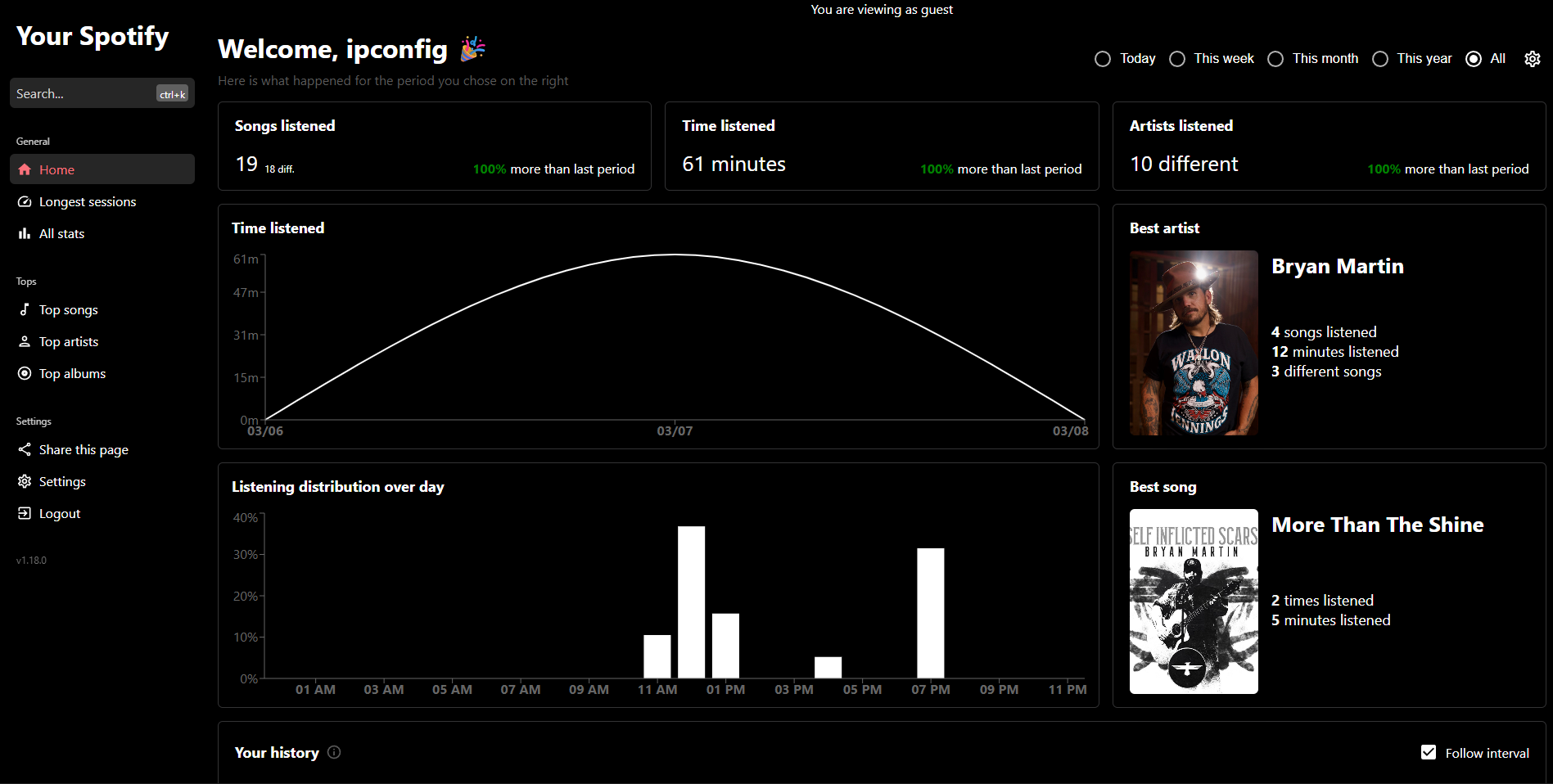
Below is what my dashboard looks like after connecting my account.
Architecture (Docker + Spotify API)
The application itself is pretty simple. Your Spotify sits between your browser and the Spotify Web API and pulls data from your account to generate the dashboard.
The stack I’m running looks like this:
- Docker – Runs the application container
- Spotify Web API – Provides the listening data
- Web UI – Displays the dashboard and analytics
When you log in with your Spotify account, the application uses Spotify’s OAuth authentication to request permission to read your listening data. After authentication, the app queries the Spotify API for things like your top tracks, artists, and listening history.
The data is then processed by the application and displayed in the dashboard as charts and stats.
At a high level the architecture looks like this:
Browser → Your Spotify Web Client → Your Spotify API → Spotify Web API
Setup Guide
Running Your Spotify is pretty straightforward once you have a Spotify developer application and a place to host the container. I deployed mine in my homelab using Docker Compose.
One important thing to know before starting: Spotify now requires HTTPS for redirect URIs. This means your dashboard must be accessible over HTTPS for the login flow to work. I solved this by exposing my service through a Cloudflare Tunnel, which provides a public HTTPS endpoint without needing to open ports on my network.
1. Create a Spotify Developer Application
First, you need to create an application so the dashboard can access your Spotify listening data.
Go to the Spotify Developer Dashboard and create a new app.
https://developer.spotify.com/
When creating the app you will receive:
- Client ID
- Client Secret
You will also need to configure a Redirect URI.
Example redirect URI:
https://yourspotify.yourdomain.com/oauth/spotify/callback
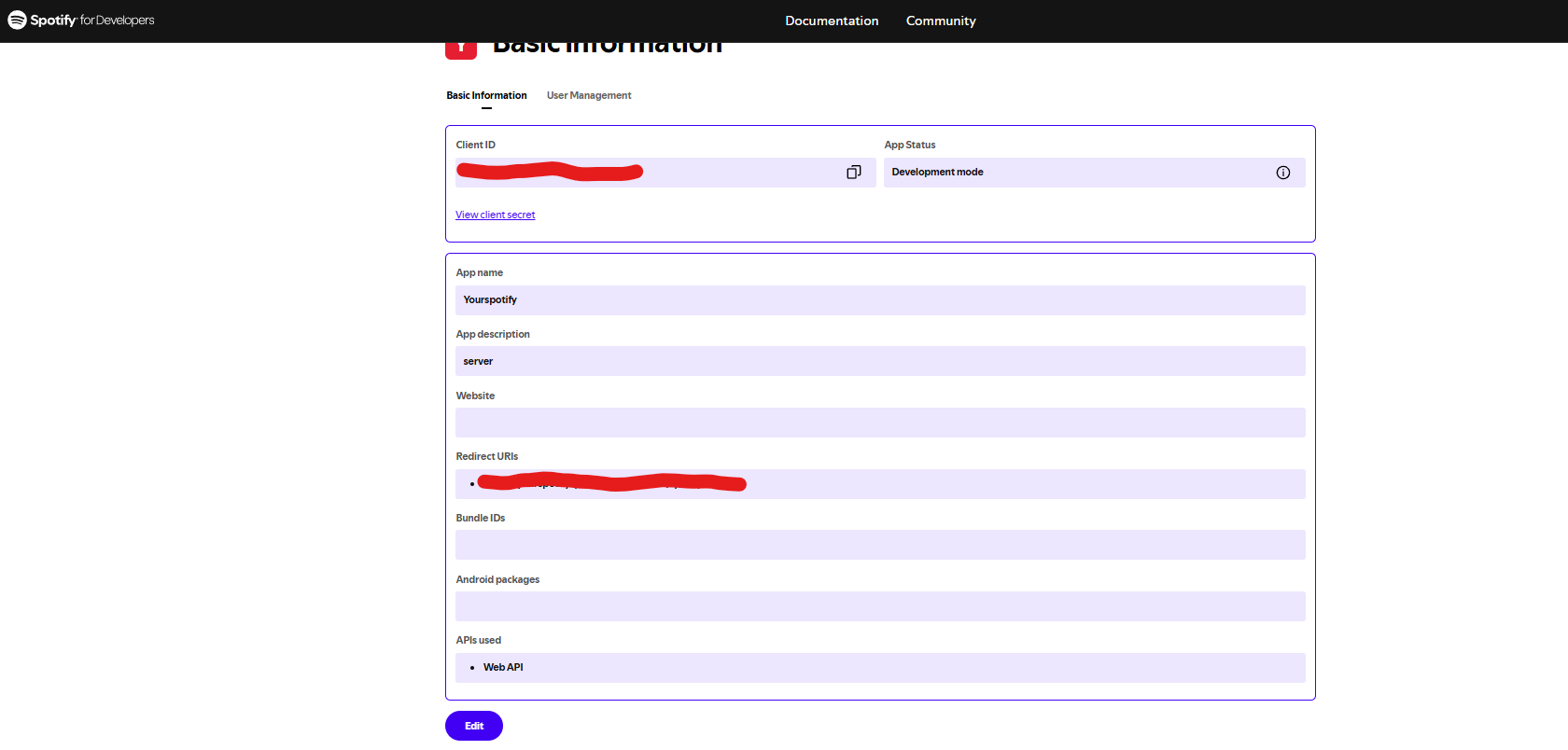
Make sure this URI exactly matches what you configure in your application and Docker environment variables.
Spotify requires this redirect URI to use HTTPS unless using loopback address.
2. Docker Compose Deployment
Below is the simplified Docker Compose file I used to run the service. Sensitive values such as secrets and domain names have been removed.
version: "3"

services:
 yourspotifyserver:
    image: yooooomi/your_spotify_server
    restart: always
    ports:
      - "9090:8080"
    links:
      - mongo
    depends_on:
      - mongo
    environment:
      API_ENDPOINT: https://yourspotify.yourdomain.com # This MUST be included as a valid URL in the spotify dashboard (see below)
      CLIENT_ENDPOINT: https://yourspotifystats.yourdomain.com
      SPOTIFY_PUBLIC: (id)
      SPOTIFY_SECRET: (token)
      CORS: https://yourspotifystats.yourdomain.com,http://localip:9191 # Add this to allow the web client access
  mongo:
    container_name: mongo
    image: mongo:6 # if older CPU image: mongo:4.4.18
    volumes:
      - ./your_spotify_db:/data/db

  web:
    image: yooooomi/your_spotify_client
    restart: always
    ports:
      - "9191:3000"
    environment:
      API_ENDPOINT: https://yourspotify.yourdomain.com
Start the container with:
docker compose up -d
Once running, the web interface will be available on port 9090.
  cloudflared: # If using Cloudflare tunnel like me
    image: cloudflare/cloudflared:latest
    restart: always
    environment:
      - TUNNEL_TOKEN=
    command: tunnel --no-autoupdate run
3. Exposing the Service with HTTPS
Since Spotify requires HTTPS, you’ll need to expose the service through a secure endpoint.
There are several ways to do this:
- Reverse proxy with Nginx or Caddy
- Cloudflare Tunnel
- Traefik
- A traditional public server with TLS
In my case I used a Cloudflare Tunnel, which securely exposes a local service to the internet without opening firewall ports.
The tunnel points my public hostname to the local container like this:
yourspotify.yourdomain.com → localhost:3000
Cloudflare automatically provides the HTTPS certificate, which satisfies Spotify’s redirect URI requirements.
4. Logging In
Once everything is running:
- Open your public HTTPS URL
- Click Login with Spotify
- Authorize the application
- The dashboard will begin generating your stats
After logging in, the application starts building your listening analytics dashboard from your Spotify account data. On the first run the application can only pull about one week of listening history, but it will build a larger dataset over time.
Things I Learned
A couple things surprised me while setting this up:
- Spotify now requires HTTPS redirect URIs
- The application builds listening history over time
- Newer MongoDB versions (5+) require CPUs that support AVX instructions. When I first deployed this stack on older hardware the container failed to start. Downgrading the image to MongoDB 4.4 solved the issue since it still supports older CPUs.